Login to COM
- Go to https://com.nycdot.io
- Click on the blue-colored login button and follow the instructions.
Go to Crews
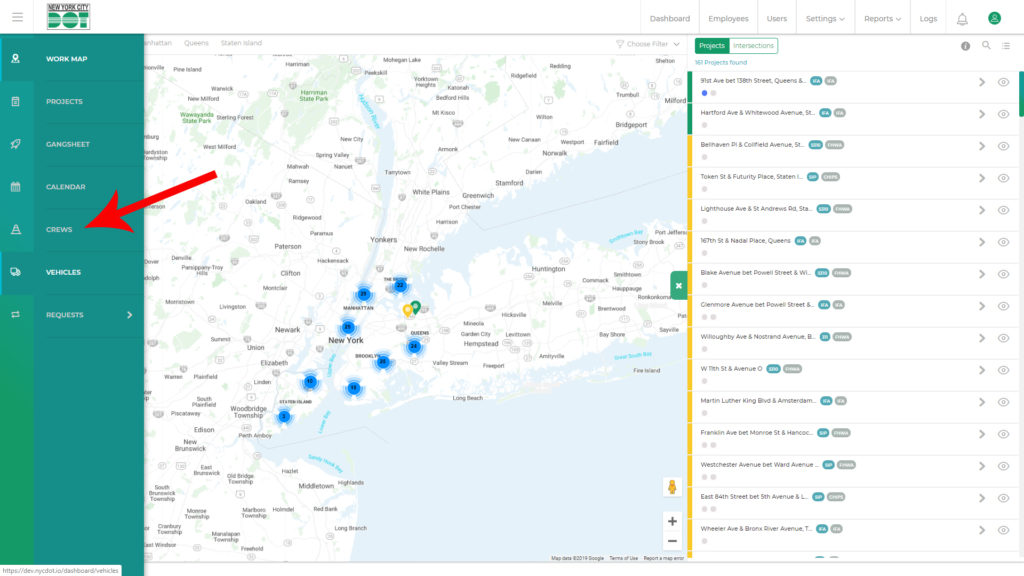
- Hover on the left menu and select Crews. (See Figure 1)
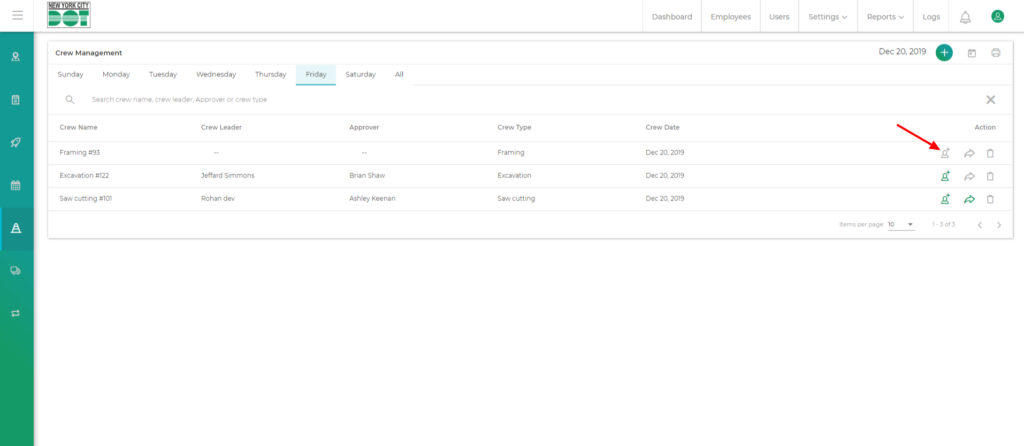
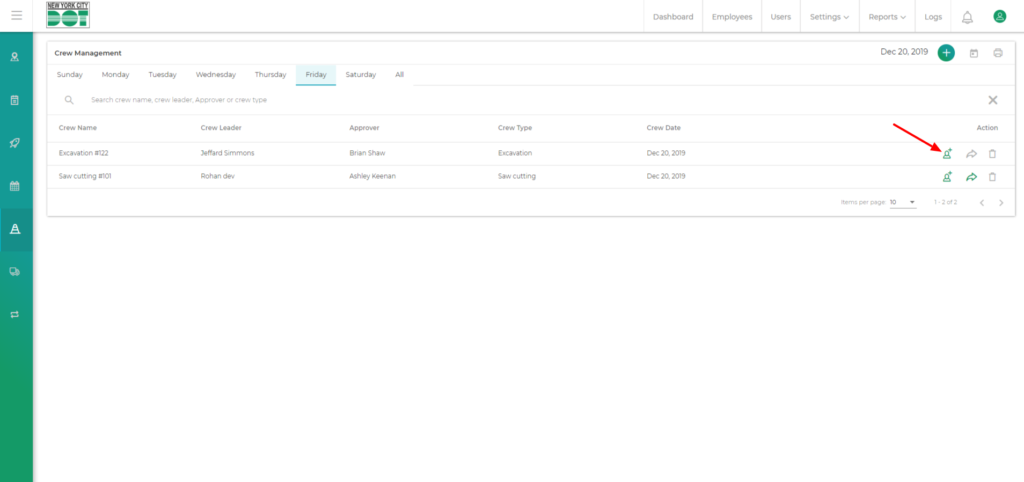
- On the crew management screen, click the grey assign members icon on the action column. (See Figure 2)
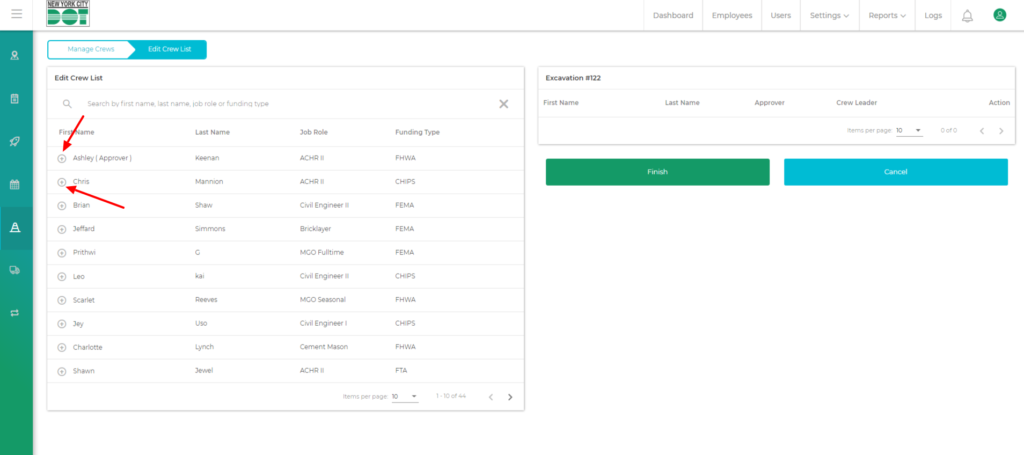
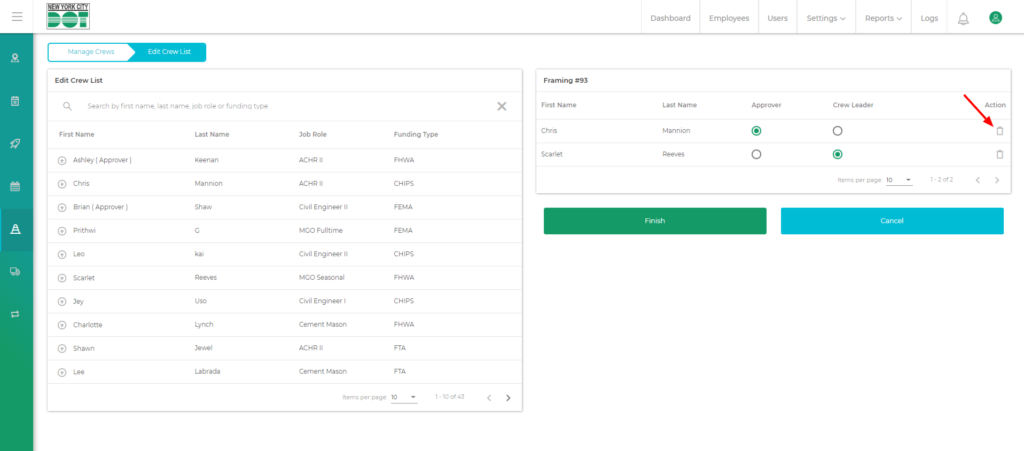
- You will be taken to the edit crew list screen, where you can assign members to any particular crew. You will see a list of employees matching your yard.
- To assign a member just click on the circular add icon beside each member name in the edit crew list. (See Figure 3)
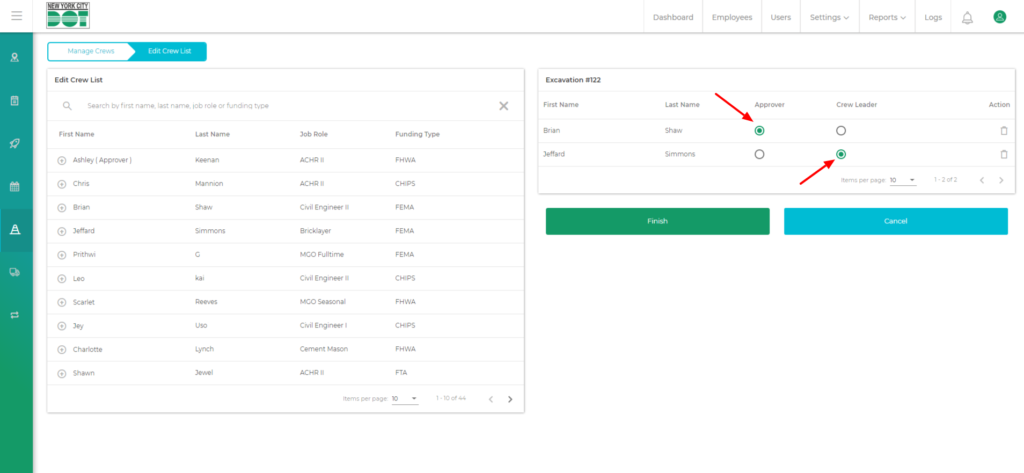
- As soon as you click on the add icon on the left side, it will be assigned to the crew on the right side. You have to make at least one member as the “Approver” and one member as the “Crew Leader”. (See Figure 4)
- You can delete an assigned member on the right side by clicking on the delete icon on the action column. (See Figure 5)
- Now click on the finish green button to complete the crew assignment.
- After the member assignment for that crew is completed, the add members icon will turn from grey to green, which means that members have been successfully added to the crew. (See Figure 6)