Login to COM
- Go to https://com.nycdot.io
- Click on the blue-colored login button and follow the instructions.
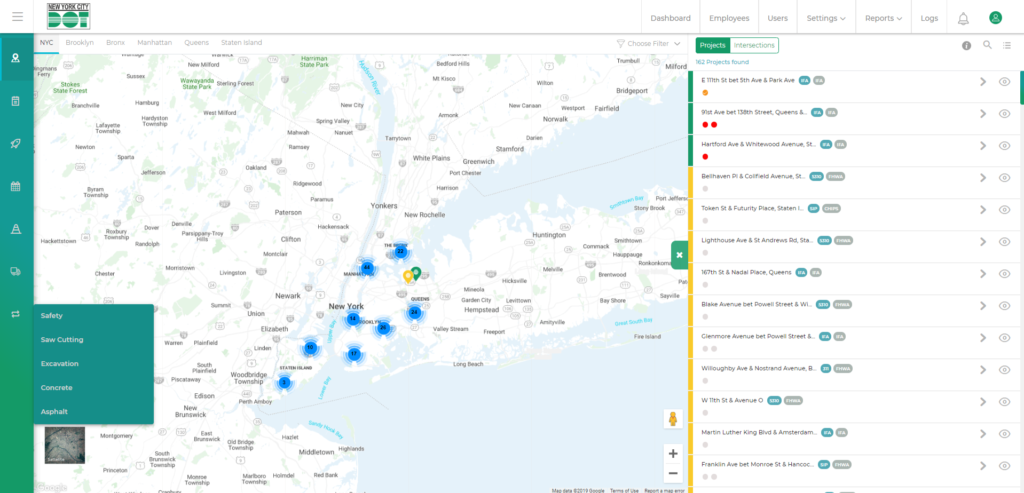
Go to Requests (See Figure 1)
- Hover on the left menu and select Requests. Then, select the Request that you are looking to submit: Safety, Saw Cutting, Excavation, Concrete or Asphalt.
- You will be taken to the respective request screen.
- On the request screen, you will see the list of requests under the pending tab.
Edit a Request
- On the request screen, you will see an action column to the right.
- You will be able to see a pencil icon. (See Figure 2)
- Click on the pencil icon to edit the request.
- On clicking the edit icon you will get an update popup. (See Figure 3)
- Change the fields you want to update and click on the Update button.
- You will see a notification that the request has been updated successfully.
Delete a Request
- On the request screen, you will see an action column to the right.
- You will be able to see a trash icon. (See Figure 4)
- Click on the trash icon to delete the request.
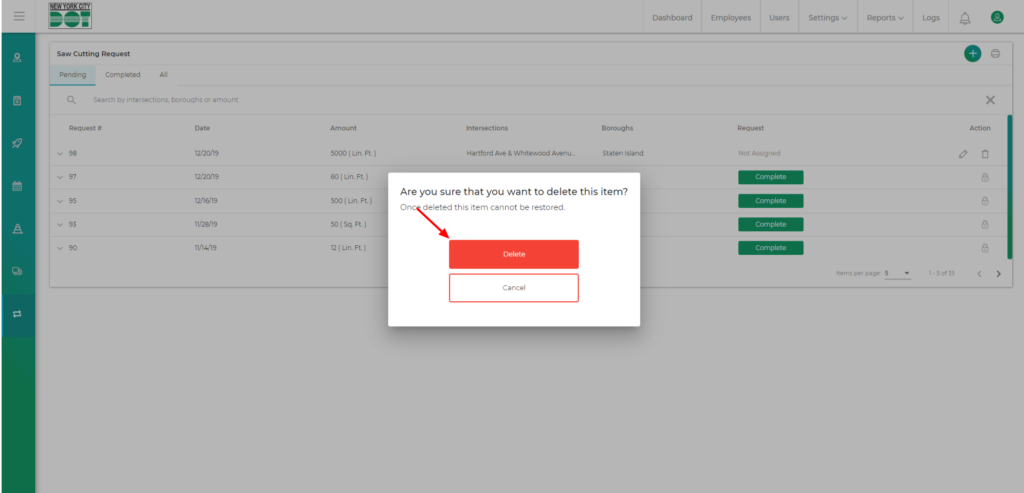
- On clicking the trash icon you will get a delete popup. (See Figure 5)
- Click on the red delete button.
- You will see a notification that the request has been deleted successfully.