Login to COM
- Go to https://com.nycdot.io
- Login with Email ID and Password.
Go to the vehicle page
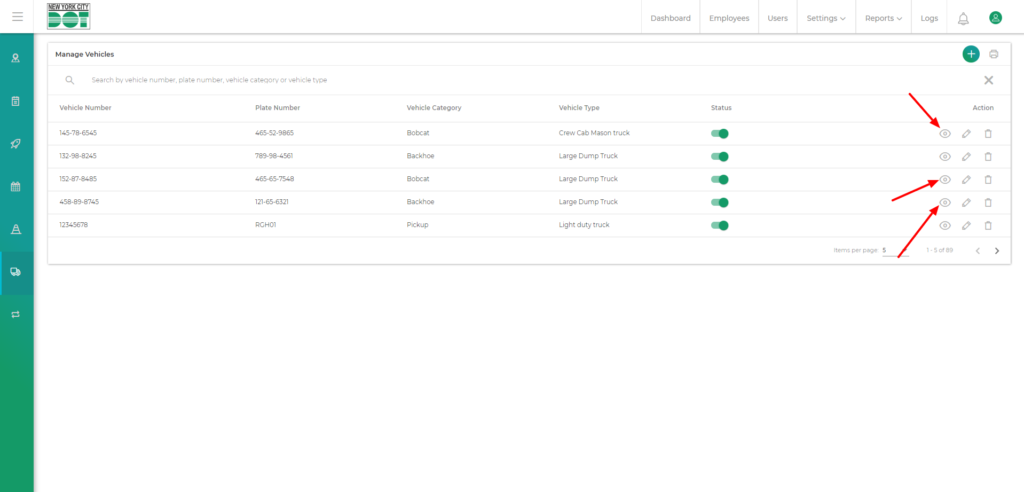
- Go to the vehicle page and click on the view icon for the desired vehicle. (See Figure 1)
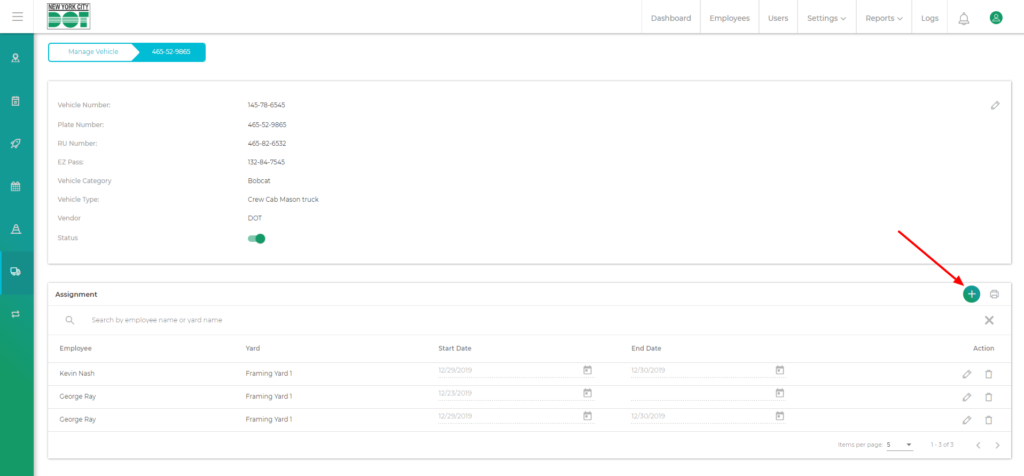
- Then you will enter the vehicle details page.
- Scroll down till you see the assignment table.
- Click on the add new icon on the assignment table. (See Figure 2)
- You will get a pop-up, on which you will be asked the employee name to whom you will assign the vehicle and the yard name where you would like to assign the vehicle along with the date on which the vehicle is to be assigned. (See Figure 3)
- Choose your desired employee and yard and your vehicle will be assigned to that employee and that yard.